
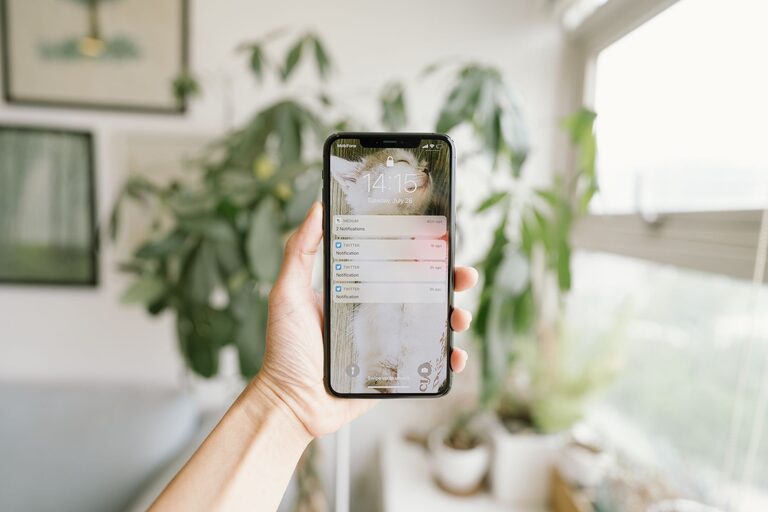
Notifications are designed to get your attention, but not every alert deserves an immediate response. When messages, updates, reminders, and app activity appear throughout the day, it can become difficult to focus on one task or enjoy uninterrupted time.
Setting boundaries with notifications does not mean ignoring important information. It means deciding when alerts are useful, which ones can wait, and how you want to interact with your devices. With a few thoughtful changes, you can create a notification system that supports your priorities instead of interrupting them.
Start by noticing the problem
Before changing your settings, pay attention to how notifications affect your day. You may notice that you check your phone whenever it lights up, pause work to read minor updates, or feel pressure to respond right away.
For a day or two, consider these questions:
– Which alerts interrupt you most often?
– Which notifications are genuinely useful?
– Which alerts lead you to open other apps?
– Are you checking notifications during meals, conversations, or rest?
– Do you feel more focused when your devices are quiet?
This quick review can help you identify patterns. You may discover that a small number of apps create most of the interruptions. You may also find that certain alerts are helpful at specific times but unnecessary at others.
Sort notifications by importance
Not all notifications need the same level of attention. A useful first step is to place them into simple categories.
Essential alerts
These are alerts you may want to receive promptly. They could include calendar reminders, travel updates, direct messages from important contacts, or alerts connected to responsibilities you have chosen to monitor.
Keep essential notifications limited. If everything is marked as important, the category loses its value.
Helpful but nonurgent alerts
These notifications may be useful, but they do not require an immediate response. Examples include newsletters, package updates, group conversations, and routine app reminders.
Consider grouping these alerts into scheduled summaries or checking them at planned times.
Optional alerts
These include promotional messages, game updates, social activity notices, and other alerts that are not necessary for your daily plans. You can often turn them off completely or leave them available inside the app without receiving a pop-up or sound.
Turn off alerts you do not need
Most devices and apps allow you to control notifications individually. Review your settings and disable alerts that add little value.
You might turn off:
– Promotional offers
– “Recommended for you” updates
– Likes and reactions
– New content alerts
– Automatic reminders from rarely used apps
– Alerts for every message in a busy group chat
If you are unsure about an app, turn off its notifications temporarily. You can always restore them later. Removing unnecessary alerts is often easier than trying to ignore them throughout the day.
Use scheduled notifications
Many phones and computers offer a scheduled summary feature. This allows less urgent alerts to arrive in batches instead of appearing one at a time.
For example, you could receive updates at:
– Late morning
– Midafternoon
– Early evening
Choose times that fit your routine. Avoid scheduling summaries during meetings, focused work, meals, or your usual bedtime preparation. Receiving several alerts at once may still feel overwhelming, so keep the summary limited to useful apps.
Create focus periods
Focus periods are planned blocks of time when notifications are reduced or paused. They can help you work, read, exercise, spend time with others, or complete household tasks without frequent interruptions.
Start with one short period, such as 30 minutes. During that time, allow only the alerts you truly need. As this becomes comfortable, you can extend the block or create separate settings for different activities.
For example, you might create modes for:
– Work or study
– Reading
– Driving or commuting
– Family time
– Exercise
– Sleep
Each mode can have its own rules. A work setting might allow calendar reminders and selected contacts, while a reading setting might allow no alerts at all.
Set boundaries for messaging
Messaging apps often create the strongest sense of urgency. A message may be visible immediately, but that does not mean it requires an instant reply.
Try setting a few personal rules:
– Check messages at planned times.
– Mute busy group conversations.
– Use a status message when you are unavailable.
– Turn off read receipts if they create pressure.
– Keep message previews hidden on your lock screen.
– Tell close contacts when you usually respond.
You do not need to explain every delayed response. A simple message such as “I check messages a few times during the day” can help set expectations with coworkers, friends, and family.
Adjust sounds, vibrations, and visual cues
Even if a notification does not make a sound, a vibration or screen flash can interrupt your attention. Review all the ways your device signals an alert.
Consider these changes:
– Use a silent setting during focus periods.
– Disable vibration for nonessential apps.
– Remove notification badges from selected apps.
– Turn off lock screen previews for private messages.
– Keep your phone out of sight during demanding tasks.
– Use a simple wallpaper or home screen with fewer visual distractions.
A less noticeable alert is still an alert, so combine these adjustments with careful notification choices.
Keep your phone in a specific place
Physical distance can make notification boundaries easier to maintain. Instead of keeping your phone beside your keyboard, on the table during meals, or next to your bed, choose a regular location for it.
A shelf, drawer, or charging station can work well. The goal is not to make your device inaccessible at all times. It is to prevent every alert from becoming an automatic invitation to check.
If you need your phone nearby for a particular reason, place it face down and use a setting that allows only selected alerts.
Protect the start and end of your day
Notifications can shape your mood before the day has properly begun and make it harder to wind down at night. Consider creating a quiet period in the morning and evening.
Instead of checking alerts immediately after waking, begin with a simple routine such as washing up, stretching, preparing breakfast, or reviewing your priorities. In the evening, set a time when nonessential notifications stop.
You can also charge your phone outside the bedroom or place it across the room. If you use your phone as an alarm, consider a separate alarm clock so your bedtime routine does not depend on a connected device.
Review your settings regularly
Your notification needs may change as your work, schedule, and favorite apps change. Set aside a few minutes once a month to review your settings.
Remove apps you no longer use, check which apps have permission to send alerts, and update your focus modes. Ask yourself whether your current setup reflects your priorities or simply the default settings provided by each app.
A helpful rule is to make notifications earn their place. If an alert does not help you act, remember, or decide something important, it may not need to reach you immediately.
Build a system that feels realistic
The best notification boundaries are practical enough to maintain. You do not need to silence every app or follow a strict digital routine. Start with one change, such as turning off promotional alerts or creating a 30-minute focus period.
Once that feels comfortable, make another small adjustment. Over time, these choices can reduce interruptions and make your devices easier to manage.
Notifications should support your plans, not set the pace of your day. By choosing what deserves your attention and when, you can remain reachable while creating more space for focus, rest, and meaningful activities.
About the Author